
Parked
Park it. Pick it back up.
A small desktop app for Windows and Linux. When you have to stop in the middle of something, it keeps a note of where you are, what comes next, and the files and links you were using.

The problem
You stop in the middle of things all the time. A meeting starts, the day ends, another project needs you. Stopping is easy. Coming back is the hard part: you have to remember what you already tried, find the files and pages you had open, and work out what to do next.
Sticky notes, a Notepad file and forty browser tabs only half work, and a project manager is more than a quick interruption needs. Parked saves your stopping point and nothing else.
How it works
-
1 Park
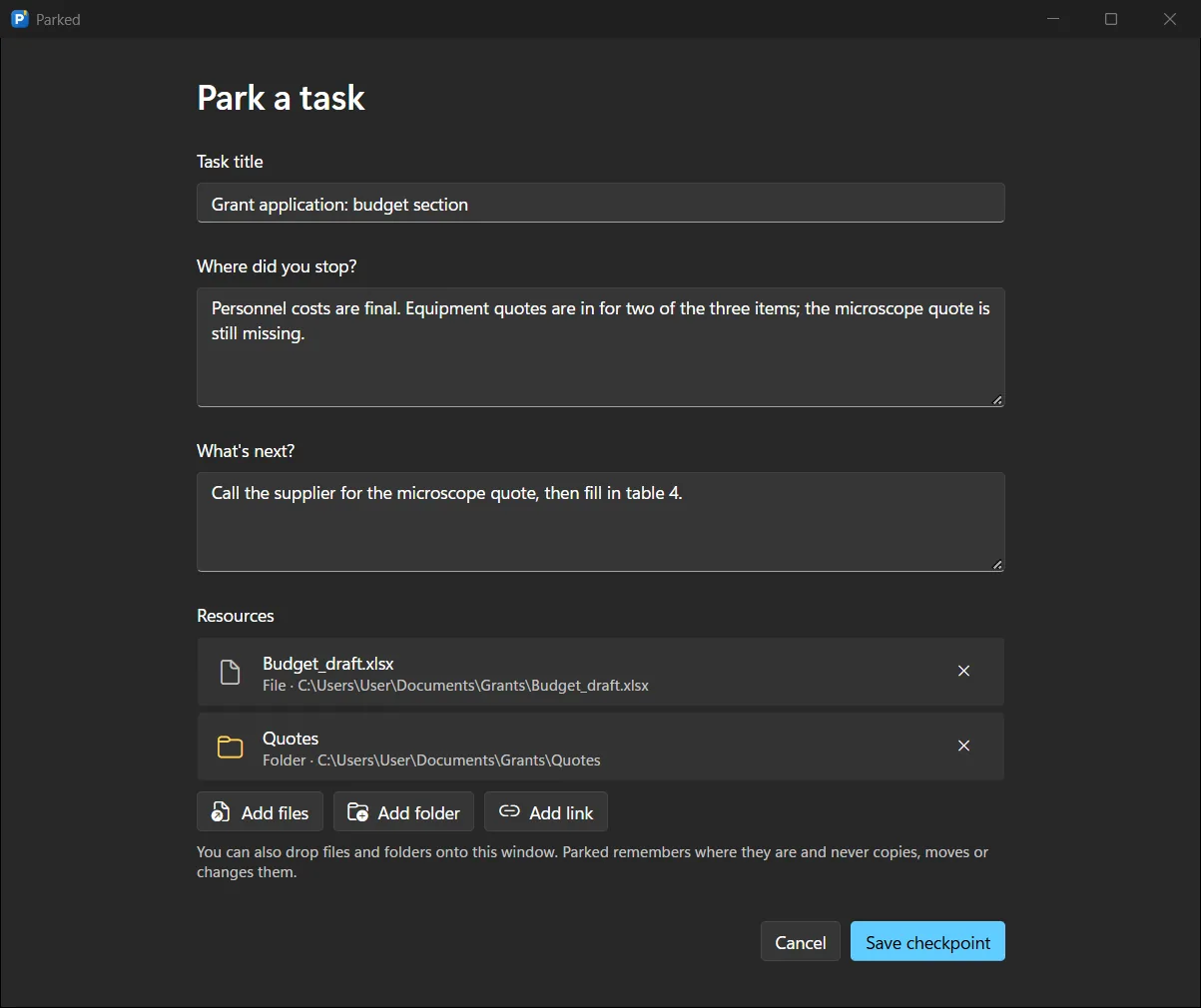
Press Ctrl N, or Ctrl Shift P from any other app. Write where you stopped and what's next, and add the files, folders and links you were using. Only the title is required, so saving takes seconds.
-
2 Find
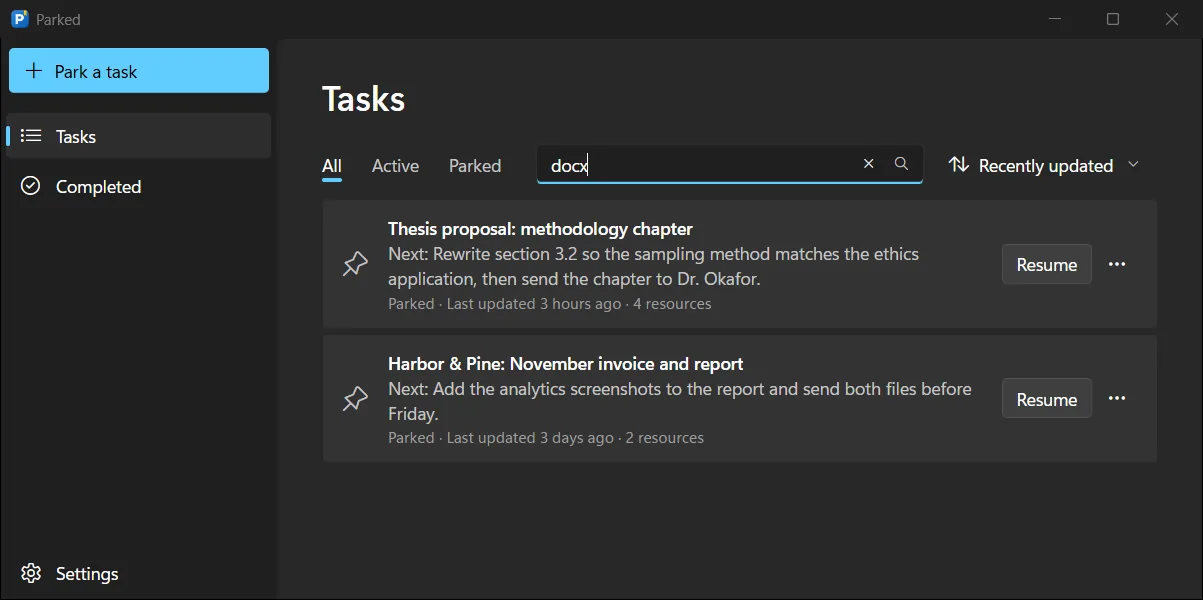
Everything you've parked is in one list, most recent first. Search checks titles, notes, next actions, file names and links as you type. Here, typing "docx" finds the two tasks that have a Word document attached.
-
3 Resume
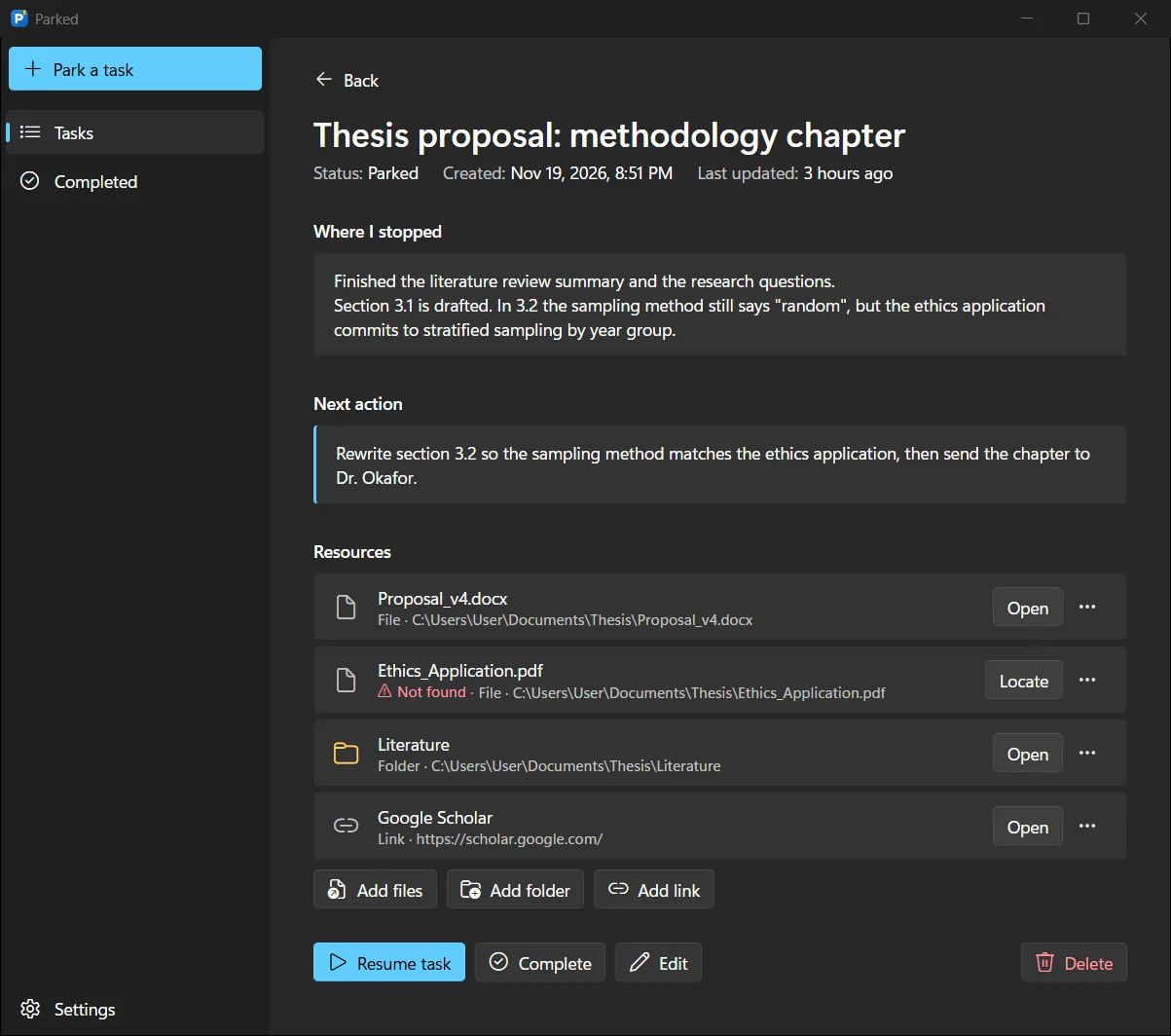
Open the task and your note, the next action and every resource are on one page. Open starts a file in its usual app. If a file has moved, Parked marks it Not found instead of dropping it, and Locate points it to the new place.


Features
- Three fields. A title, where you stopped and what's next. Nothing else to fill in.
- Files, folders and links. Add them with the buttons, by pasting a link, or by dragging them onto the window. Parked stores where they are and never copies, moves or changes them.
- Search as you type. Filter by Active or Parked and sort by last update, creation date or title.
- Parked, active, completed. Finished tasks go to an archive and stay there until you delete them. You can reopen any of them.
- One shortcut away. Parked waits in the system tray, and Ctrl Shift P brings it up from any app. You can change the shortcut, and starting at sign-in is off unless you turn it on.
- Stays on your computer. One SQLite file, no account, no server, no telemetry. It works offline.
Download
The version, file sizes and checksums couldn't be loaded. Every file and its checksum is on the release page on GitHub.
Windows
Windows 10 or 11, 64-bit
Installs for your account. No administrator rights needed.
For MSI deployment or a per-machine install.
Linux
64-bit, glibc 2.35 or newer: Ubuntu 22.04, Debian 12, Fedora 36 and later
Runs on most distributions without installing anything.
For Ubuntu, Debian, Linux Mint, Pop!_OS and other Debian-based systems.
Install
Windows
- Download the installer (
Parked_0.2.0_x64-setup.exe) and open it. -
Windows may show a blue screen that says Windows protected your PC. Click More info, then Run anyway.
This isn't a malware warning. SmartScreen shows it for apps that aren't signed with a paid certificate and haven't been downloaded by many people yet, and Parked's installers aren't signed. To check that your download is the real one, compare its checksum with the one above. In PowerShell:
Get-FileHash .\Parked_0.2.0_x64-setup.exe - Follow the installer. Parked installs for your account only and opens when it's done.
- Parked needs Microsoft Edge WebView2, which Windows 11 and up-to-date Windows 10 already have. If it's missing, the installer downloads it once. Parked itself never goes online.
To update, install the new version over the old one. Your tasks and settings are kept.
Linux
Open a terminal in the folder you downloaded to.
Debian package
Install it with apt so the libraries it needs come with it, then open Parked from your app menu:
sudo apt install ./Parked_0.2.0_amd64.debAppImage
Make it executable, then start it:
chmod +x Parked_0.2.0_amd64.AppImage
./Parked_0.2.0_amd64.AppImage
If it doesn't start, your system is missing FUSE 2, which AppImages use. Install libfuse2 on Ubuntu 22.04, or libfuse2t64 on Ubuntu 24.04 and later. If you turn on Start Parked when you sign in, leave the AppImage where it is, because the startup entry points to that file.
To check a download first, run sha256sum on it and compare the result with the checksum above. To update, install the new .deb the same way or replace the AppImage. Your tasks and settings are kept.
FAQ
Where are my tasks stored?
In one SQLite file, parked.db, on your own computer:
- Windows:
%APPDATA%\com.samisdone.parked - Linux:
~/.local/share/com.samisdone.parked
Settings → Data → Open folder takes you there. Parked stores where your files and folders are, never copies of them, and deleting a task never touches the files it pointed to.
Does it work offline?
Yes. Parked has no account, no server and no telemetry, and it never fetches the pages you attach. Links open in your own browser. The only time anything is downloaded is on Windows, if the installer has to fetch WebView2.
Why is there no tray icon on GNOME?
GNOME doesn't show tray icons on its own. Ubuntu's GNOME does, and so do KDE Plasma, Cinnamon, Xfce, MATE and Budgie. On other GNOME desktops, install the AppIndicator extension. Without a tray, closing the window exits Parked.
Clicking the tray icon on Linux opens its menu rather than the window, because Linux tray icons can't tell the two clicks apart.
What doesn't work on Wayland?
Wayland doesn't let apps listen for shortcuts while another app is in front, so Ctrl Shift P only works on X11. On Wayland, add a custom shortcut in your desktop's keyboard settings that runs parked (or the path to the AppImage). Parked only runs once, so that shortcut brings the open window forward.
Wayland also doesn't tell apps when their window is minimized, so Hide when minimized isn't available, and Parked restores its window size but not its position. Settings tells you when one of these applies.
How do I uninstall it?
Windows: open Settings → Apps → Installed apps and uninstall Parked. Your tasks stay in %APPDATA%\com.samisdone.parked in case you reinstall, unless you tick the option to delete the application data. You can also delete that folder yourself.
Linux: run sudo apt remove parked, or delete the AppImage. Your tasks stay in ~/.local/share/com.samisdone.parked; delete that folder to remove them too.